
Data Importation in Excel
A beginner-friendly guide to bringing data into Excel from text files, websites, and other sources.

Ever copied and pasted data from a website into Excel – only for everything to scatter everywhere?
Or maybe someone sent you a file, but you didn’t know how to open it in Excel.
This post is for you.
In this guide, I’ll show you how to import data into Excel – the clean, simple way. Whether it’s from a CSV file, a website, or another Excel file, you’ll learn how to get your data in without stress.
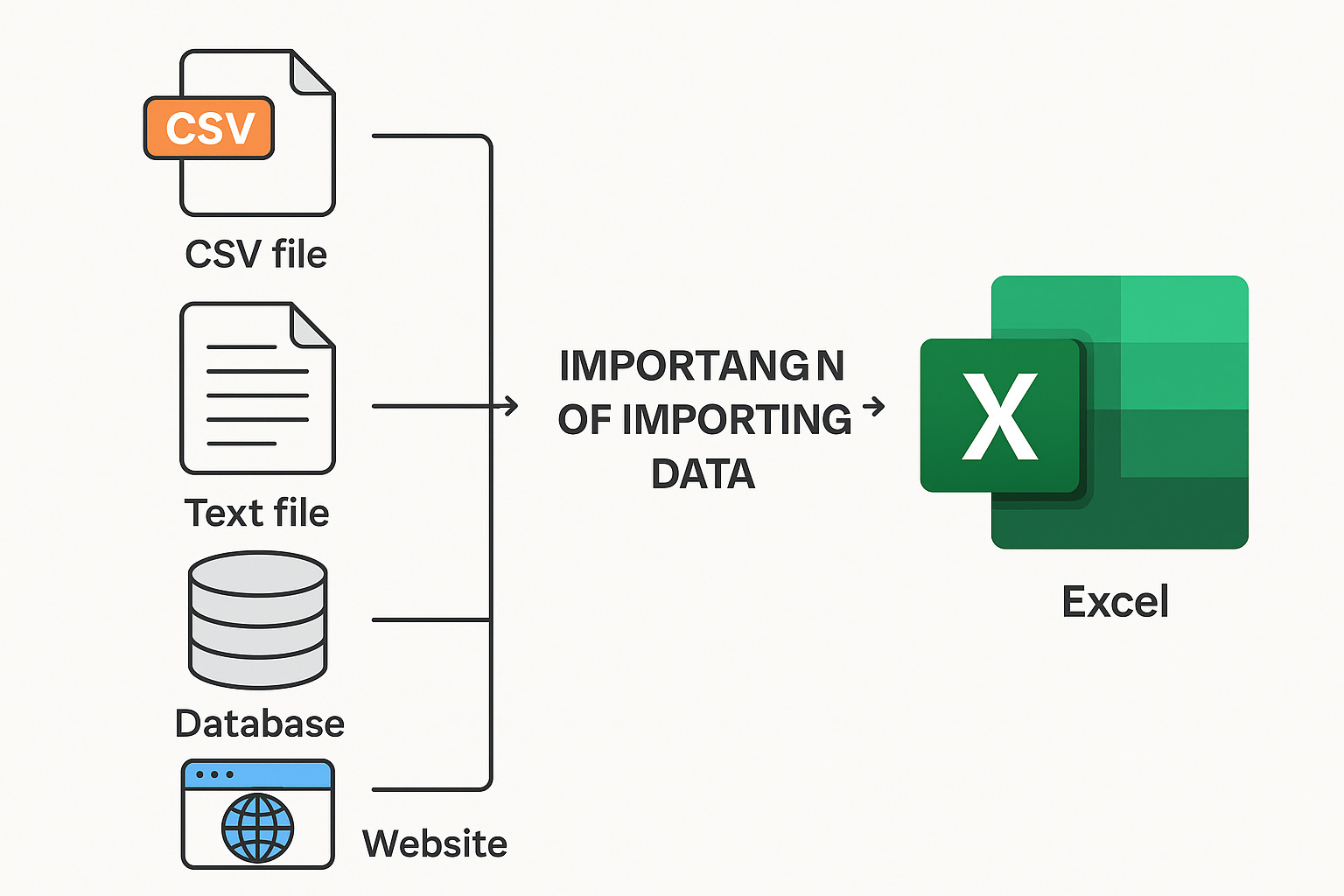
What Does “Importing Data” Mean?
Importing data means bringing data from outside Excel – like from a file, folder, website, or another software – into Excel so you can work with it.
Instead of typing the data manually, Excel allows you to import data from various sources, ensuring that you can analyze data no matter where it originates from.
Types of Files You Can Import into Excel
Here are some common data sources you can import:
CSV files (.csv) – often used for data from websites, banks, or software.
Text files (.txt) – usually raw data with tab or comma separators.
Another Excel file – useful when combining sheets or reports.
Web data – live data from websites (e.g., stock prices).
Folder of files – for those working with multiple CSVs at once (we can keep this as an “advanced note”).
How to Import a CSV File into Excel
CSV stands for Comma Separated Values. It’s a text file where data is separated by commas. They are Often used when data needs to be compatible with many different programs.
Open Excel.
Click on the “Data” tab at the top.
Select “Get Data” > From File > From Text/CSV.
Choose your CSV file.
Excel will preview the data. Click “Load”.
Done! Your data is now in Excel.
How to Import Data from a Website
Let’s say you want to import world population data into Excel – instead of copying and pasting from a website (which usually messes up the format), here’s how you can do it:
Go to the “Data” tab.
Click “Get Data” > From Web.
A box will pop up. Paste this link:
https://en.wikipedia.org/wiki/List_of_countries_and_dependencies_by_populationClick OK.
Excel will search the web page and show you a list of tables.
Look for the table with country names and population figures.
Click Load.
Excel will pull that table straight into your sheet – clean and ready to use.
Importing Data from a Database into Excel
You don’t have to be a tech genius to connect Excel to a database.
In many workplaces, data is stored in databases – like SQL Server, MySQL, or even Access. Excel allows you to connect directly to these databases and bring in the data you need.
But first... what is a database?
A database is like a big storage room for data. It organizes information in tables, just like Excel, but on a much larger scale.
How to Import Data from a Database
Example: Microsoft SQL Server
Open Excel.
Go to the Data tab.
Click on Get Data – From Database – From SQL Server Database.
A box will pop up. You’ll need two things:
Server name – this is usually given to you by your company or instructor.
(Optional) Database name
Click OK.
Excel will connect to the server and show you a list of tables.
Choose the table you want, click Load.
Excel will pull that table from your database. Just like any other data, you can now clean, filter, and analyze it.
Quick Tip: Always Clean Your Data After Importing
Imported data is not always clean. Watch out for:
Empty rows/columns
Weird characters
Wrong formatting (e.g., dates as text)
Final Words
Learning to import data is one of the first steps toward becoming a data analyst. It saves you time and opens the door to working with real-world datasets.
In the next post, I’ll show you some simple ways to clean imported data – because clean data = good analysis.
—Anastasia Nmesoma.

Want to learn faster?
I put together the exact study pack I wish I had when I started learning Data Analytics. It includes:
My full beginner roadmap
Curated course links (no random YouTube playlists)
Practice projects for each topic
KPIs companies actually use
Covers Statistics, Excel, SQL, Power BI, Tableau, Python, Data Warehousing, Documentation & more